




























7 iPhone Settings That Can Help Improve Battery Life, According to Tech Experts
If your iPhone battery is draining faster than it used to, it may not be the battery. iPhone settings built-in, tech experts say, that run in the background and quietly suck up power throughout the day.

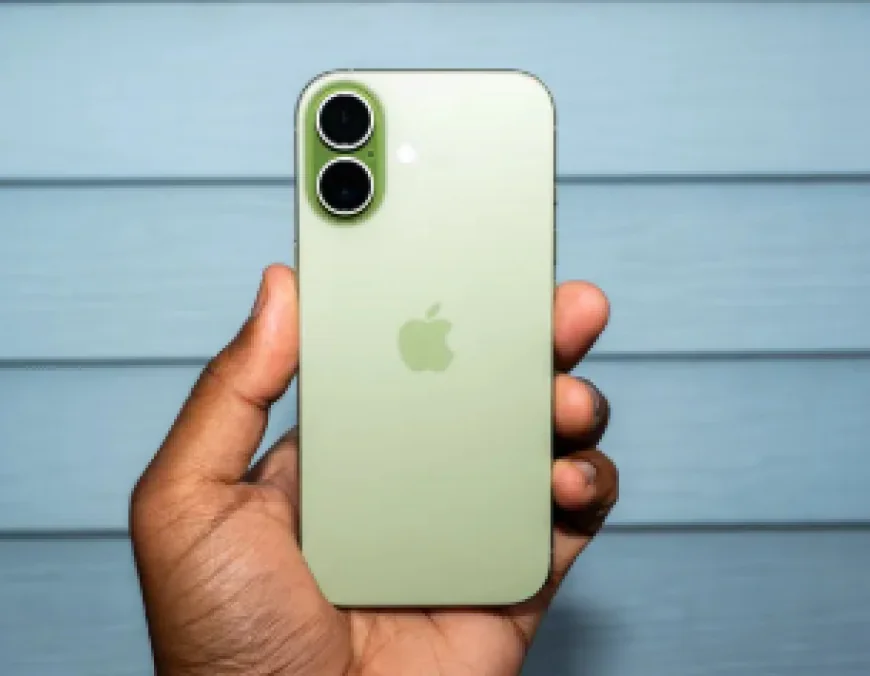
Fortunately, a couple of simple tweaks can make your iPhone last longer without having to buy a new battery or download third-party apps.
7 settings to check:
1. Turn Off Background App Refresh
This allows apps to refresh content while you’re not using them. One of the biggest battery drainers.
Experts recommend turning it off altogether at the very least and limiting it to Wi-Fi. Settings > General > Background App Refresh
2. Change Mail from Push to Fetch
Push means your iPhone is always checking for new emails. With Fetch, you get updates of your emails at regular intervals. Fetch New Data Settings > Mail > Accounts
3. Improve Location Services
“Always” location tracking apps can be a battery killer. Experts say most apps should give you the option to change the permissions to “While Using the App".
You might also want to turn off system services you don’t use that frequently, such as iPhone Analytics, Routing & Traffic, Improve Maps and Significant Locations.``
4. Disable Always-On Display
Always-On Display keeps your lock screen alive if you have an iPhone 14 Pro or later. Turning it off can help your battery life big time. Settings > Display & Brightness > Always On
5. Switch to 5G Auto instead of 5G On
Keeping 5G on all the time means your phone is constantly trying to connect to faster networks when you don’t need it. Select 5G Auto and the iPhone will automatically switch to LTE when 5G isn’t needed to save power. Settings > Cellular > Voice & Data > Cellular Data Options >
6. Remove Unused Lock Screen Widgets.
Widgets such as weather, calendar, reminders, etc., are constantly updated to show live information. Convenient, but they cause background activity. Remove the ones you don’t use regularly.
Hold the lock screen > Customise > Remove widgets.
7. Reduce screen brightness and use auto-brightness.
The other big drain is the bright screen. `Turn Auto-Brightness on, and don’t set the brightness to 100% all day. Settings > Accessibility > Display & Text Size > Auto-Brightness
Do these tweaks make a difference? Results may differ based on your iPhone model and how you use it, but taken together, these tweaks can trim background activity and boost your battery life over time.
If your battery health is less than 80%, you may still require a battery replacement. But for most users, tweaking these settings is the quickest way to get through the day without reaching for the charger.
What's Your Reaction?
 Like
0
Like
0
 Dislike
0
Dislike
0
 Love
0
Love
0
 Funny
0
Funny
0
 Angry
0
Angry
0
 Sad
0
Sad
0
 Wow
0
Wow
0